
Parents: Protect iPhone Game Footage with 1080p/60 and a 10–30 GB Plan
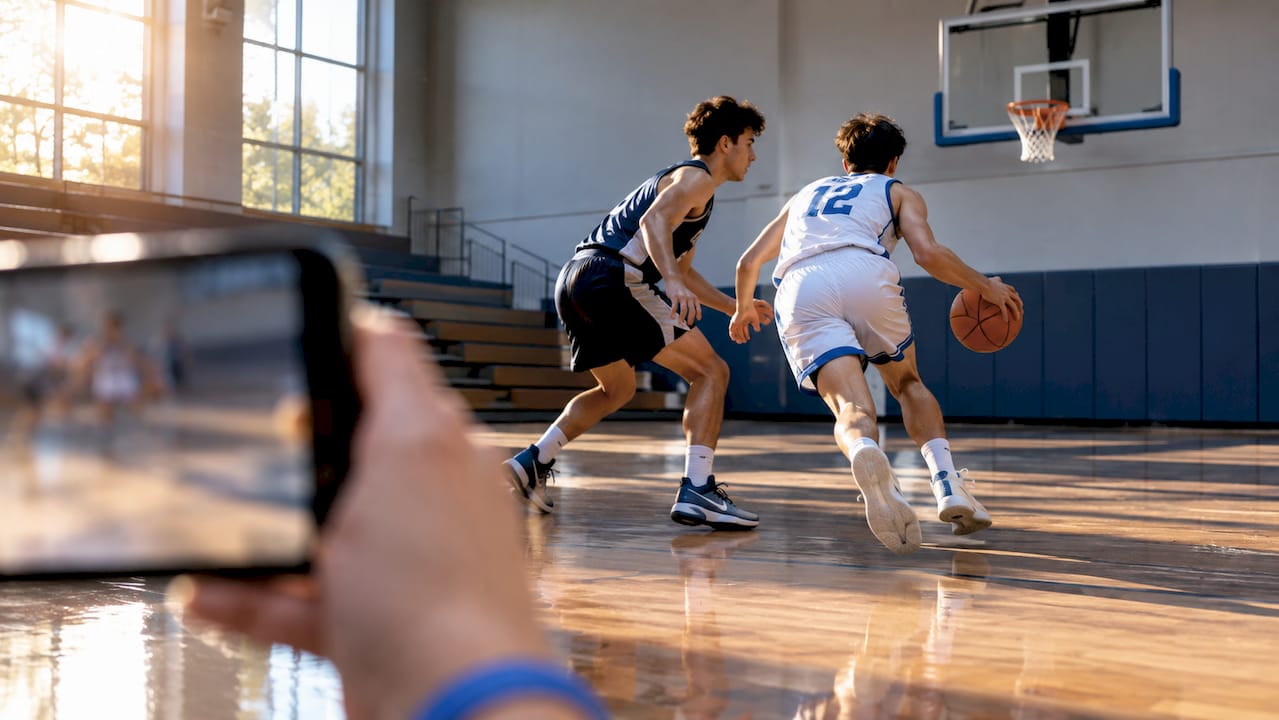
For reliable full-game footage, record in 1080p at 60 frames per second with High Efficiency turned on, and clear at least 10 to 30 GB of free space before kickoff. Save 4K/60 for short highlight clips rather than for full games. Run the same routine every time: check storage, set the camera, record, copy the footage off your phone, verify it opened correctly, then delete.
TL;DR:
Recording 1080p at 60 fps balances quality and storage, using about 10 GB per hour of footage, making it ideal for full-game capture.
Keep at least 10 to 15 GB free for a single game, and larger margins for tournament weekends or multiple games, to prevent storage shortages during recording.
Always verify footage by opening and checking playback immediately after copying, especially before deleting from the phone, to avoid file corruption.
An automated tracking camera can eliminate manual filming and storage management, with a one-time cost of $849 and no subscription fees.
Table of Contents
Recommended iPhone Storage Settings for Sports Video
Resolution and frame rate fight each other over the same limited space. Push resolution up and file size climbs fast; push frame rate up and it climbs again, since your iPhone is capturing more images every second no matter how sharp each one is. Understanding that tradeoff is really the whole game when you’re managing iPhone storage for sports video.
For most outdoor youth games, 1080p at 60 fps balances quality and storage well, according to Apple’s own camera guidance. It captures fast motion, like a breakaway sprint or a swing, without the file-size penalty of 4K. Apple notes that 4K at 60 fps delivers the sharpest picture when you have strong light and plenty of storage, which makes it a better fit for a short clip you plan to post than for ninety minutes of continuous play. Indoor gyms with dimmer, uneven lighting often do better at 1080p regardless, since lower light pushes file sizes up further at higher resolutions.
Action mode deserves a mention because parents ask about it constantly. It smooths out the bounce of handheld filming along the sideline, but Apple caps it at 2.8K on supported models and it performs best in bright light. Test it at your actual field before trusting it for a real game.
A quick settings checklist before you head out the door:
Open Settings > Camera > Formats and confirm High Efficiency is selected.
Set recording to 1080p at 60 fps for full games; reserve 4K for planned short clips.
Turn on Action mode only in good outdoor light, and test it once beforehand.
Check Auto FPS and HDR settings so they aren’t silently switching you to a heavier format.
How Much Storage Does an Hour of Sports Video Actually Use?
A single minute of 4K video at 30 fps in HEVC can use more than 175 MB, which works out to roughly 10.5 GB or more per hour. That figure shifts with lighting, motion, and whether HDR is active, so treat it as a floor, not a guarantee. Third-party guidance commonly lands near the same 10 GB-per-hour mark for typical soccer footage, which is a useful gut check when you’re deciding how much room to clear.
Editing eats space too. Trimming a clip or building a highlight reel in an app like iMovie needs working room on top of the original file, and Apple’s own export guidance notes that projects can stall or fail if your phone is close to full. Budget extra headroom beyond your recording estimate, not right up to it.
Here’s how that translates into planning numbers for a season of youth sports:
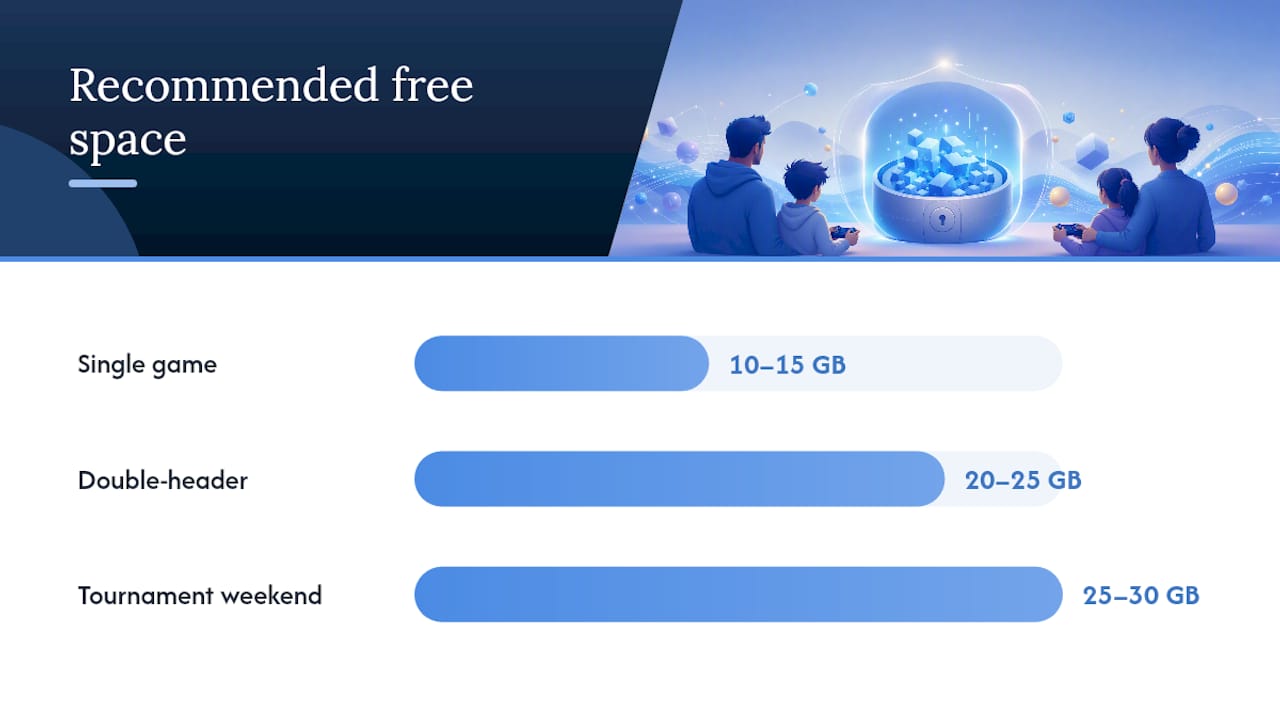
Event type | Recommended free space | Notes |
Single game (60 minutes) | 10 to 15 GB | Covers one continuous 1080p/60 recording with a small margin |
Double-header | 20 to 25 GB | Two games plus room to review and trim between them |
Tournament weekend | 25 to 30 GB | Multiple games across days before you can offload footage |
If you check Settings > General > iPhone Storage mid-event and space is running low, stop recording, copy what you have to Files or a laptop if one’s nearby, and delete anything expendable, like duplicate photos or old app data, before the next period starts.
Which iPhone Video Format Should You Use: HEVC or H.264?
Stick with High Efficiency (HEVC) for almost every youth sports recording. Apple’s own comparison confirms that HEVC compresses video more efficiently than H.264, meaning the same footage takes up meaningfully less room without a visible quality hit. That’s the format doing the heavy lifting in every storage estimate mentioned so far.
The tradeoff is compatibility. Older phones, some Android devices, and a handful of older editing programs handle H.264 more reliably, which is why Apple offers “Most Compatible” as an option. If you’re regularly sharing raw files with a grandparent on an aging device, that setting avoids playback headaches, at the cost of larger files.
ProRes is the format to skip entirely for full games. It’s built for professional color grading workflows, and Apple notes it can run up to 30 times larger than HEVC, often requiring an external drive just to sustain the write speeds. That kind of file size turns a single game into a storage crisis.
To set this up:
Go to Settings > Camera > Formats and choose High Efficiency.
Switch to Most Compatible only if you know the footage needs to play on an older device.
Leave ProRes off unless you’re doing dedicated editing work with external storage attached.
Double check HDR video is toggled the way you expect, since it changes file size too.
A Game-Day Workflow That Actually Prevents Lost Footage
Most storage disasters happen because there’s no repeatable routine, not because of any single bad setting. Apple’s own storage guidance boils down to a simple sequence, and running it the same way every week removes the guesswork.
Before the game: Check Settings > General > iPhone Storage and confirm you have your target free space for the event type. Set the camera to 1080p/60 with High Efficiency. Charge to 100% and consider a portable battery for tournaments.
During the game: Record in continuous clips rather than stopping and restarting for every play, since restarts multiply file overhead. If storage runs tight mid-game, pause and check remaining space rather than recording blind until the phone stops you.
After the game: Copy footage off the phone immediately, before you do anything else with your camera roll. Open the copied file and confirm it plays, then keep at least one separate backup before deleting the original from your phone.
For organizing a full season, a simple folder naming pattern (team name, date, opponent) saves hours later when you’re hunting for one specific play.
Pro Tip: Label files the moment you copy them, not later. “Season2026_Game3_vs_Eagles” takes ten seconds and saves you twenty minutes of scrubbing through unlabeled clips in November.
For more on framing and when to actually hit record during a fast-moving match, this guide to filming youth sports walks through the practical side.
iCloud, Local Copies, and External Drives: What Actually Keeps Footage Safe
iCloud Photos and a truly safe backup are not the same thing, and mixing them up is how families lose irreplaceable game footage. When Optimize iPhone Storage is turned on, your phone keeps a smaller local copy while the full-resolution original lives in iCloud. That frees up space on your device, but here’s the catch: deleting a video from your Photos app deletes it everywhere it’s synced, iCloud included. There’s no separate “local only” copy sitting untouched somewhere.
That single fact should change how every parent handles cleanup after a big tournament.
Your safest options, in order of convenience:
Cable transfer to a computer using the Photos app or Finder, which gives you a copy completely outside Apple’s sync chain.
Save to Files, then move to an external SSD, ideal for families filming every weekend all season.
Upload to iCloud or a third-party cloud service as a secondary copy, not your only copy.
Before deleting anything, run a verification pass: open the file, scrub through it, confirm the duration matches what you expect, and check the thumbnail isn’t corrupted. If you can, play it on a second device. Roughly a third of a phone’s storage math changes the moment you start exporting compressed highlight versions for sharing instead of keeping originals, so decide early which files are archive copies and which are disposable exports.
Compressing and Sharing Highlight Clips Without Losing Quality
Full-resolution game footage is overkill for a group chat. For short highlight clips, exporting at 1080p keeps things watchable while cutting the file size dramatically; 720p works fine for quick shares where quality matters less than speed.
Apple’s own export data shows 1080p exports running roughly 70 to 105 MB per minute, well below the size of the original camera file, which is exactly why exporting before sharing matters. Trimming a clip in iMovie or the Photos app and exporting at a lower resolution solves most “why won’t this attach to a text” problems instantly. You can check the resulting file size right in the Files app before you send anything.
For getting clips to family, AirDrop works for anyone nearby, while a cloud link or a compressed MP4 attachment handles distance. The partner guide on team photo and video sharing covers season-long sharing workflows if you’re coordinating with a whole roster of families.
If a clip is headed to a recruiter, keep it simple: 1080p resolution, under two minutes, and a filename with the player’s name and position.
Managing Battery Life During a Full Day of Filming
Recording video at 60 fps in 1080p or 4K is one of the fastest ways to drain an iPhone battery, and a tournament day with three or four games will find that limit fast. Screen brightness and continuous camera use both pull heavily on the battery, so a few adjustments make a real difference across a long day at the field.
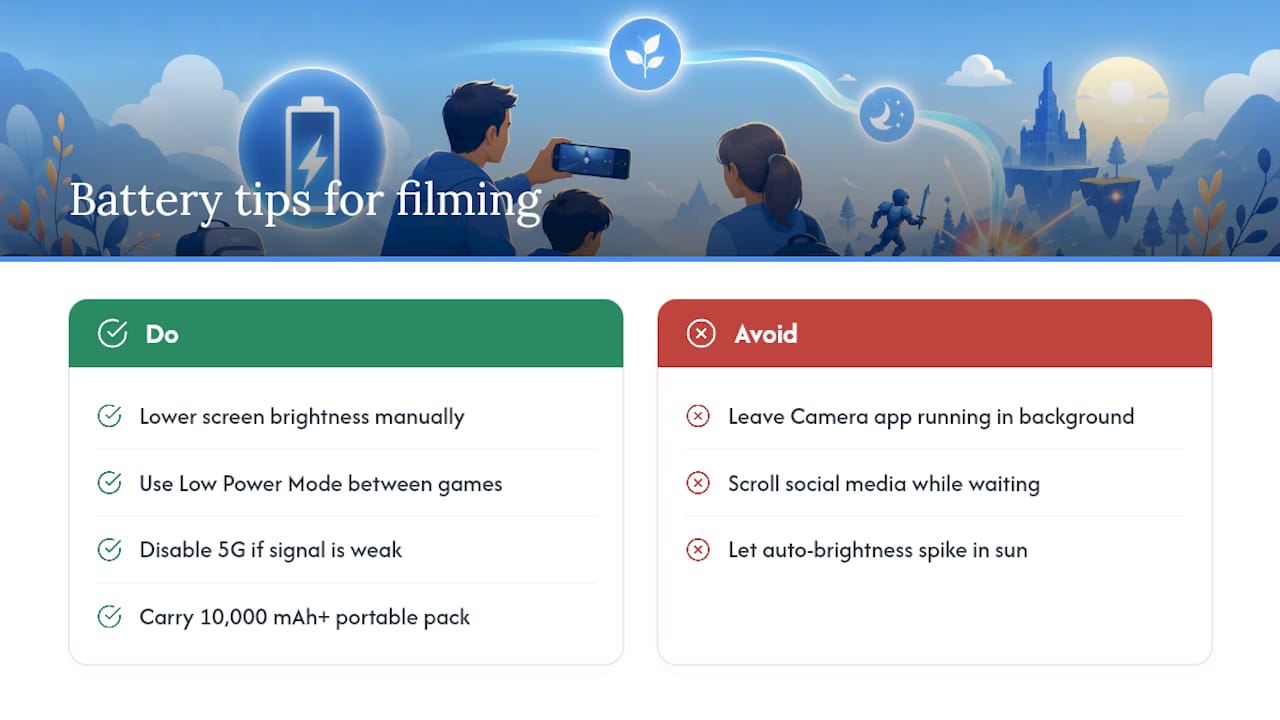
Drop screen brightness manually rather than letting auto-brightness spike it in direct sun, since a bright screen while recording is one of the bigger drains you can control. Turn on Low Power Mode between games rather than during recording, since it can throttle performance while actively filming. If your phone supports it, disable 5G in favor of LTE at venues with weak signal, since a phone constantly searching for a stronger connection burns power faster than one settled on a stable one.
A portable battery pack is the single best investment for tournament weekends. Look for one rated at 10,000 mAh or higher, enough for two or three full recharges depending on your phone model. Keep it in a cool pocket or bag rather than direct sun, since heat degrades both phone and pack battery performance during outdoor games.
Between games, close the Camera app instead of leaving it open in the background, and avoid scrolling social media while you wait for the next match to start. Every small habit adds up when you’re trying to make it through six hours at a tournament on one charge.
Accessories Worth Buying for Better Sports Footage
A phone gimbal is the accessory most parents underestimate. Handheld footage of a fast break or a breakaway run tends to bounce and blur, and a basic three-axis gimbal smooths that out far better than digital stabilization alone. Models built for phones typically run in the $80 to $150 range and fold down small enough for a sideline bag.
A clip-on telephoto lens helps when your child plays on a field where the sideline sits far from the action, like lacrosse or football. These attach directly over the iPhone’s camera lens and extend reach without digital zoom’s quality loss.
For storage, a compact external SSD with a Lightning or USB-C connector lets you offload footage between games without hunting for Wi-Fi or waiting on a slow upload. A tripod with a phone mount frees your hands for cheering rather than holding a device steady for ninety minutes straight, and it solves the shake problem a gimbal addresses for handheld filming.
None of these accessories fix the core problem every parent filming manually eventually runs into: someone still has to hold the camera, aim it, and remember to hit record. That’s a workflow limitation no lens or tripod resolves.
Fixing Common iPhone Recording and Storage Problems
“Storage almost full” mid-game is the most common crisis, and it’s almost always preventable with the pre-game check outlined earlier. If it happens anyway, stop recording immediately rather than letting the phone force a stop mid-clip, which can corrupt the file you’re currently capturing.
If a recording stutters or drops frames, it’s often a heat issue rather than a storage one. iPhones throttle performance when they get too warm, which happens fast in direct sun during a summer tournament. Move to shade between recordings and let the phone cool before starting the next clip.
If a video won’t play back or shows a black thumbnail, the file transfer likely got interrupted. Re-copy it rather than assuming it’s corrupted. This is exactly why the verification step, actually opening and scrubbing through a file after copying it, matters more than it sounds like it should.
If iCloud shows “storage full” and you can’t upload backups, check whether Optimize iPhone Storage is fighting you: the phone won’t clear local space for space it’s already trying to sync. Confirming an upload finished before deleting anything locally avoids the sync-deletion trap described earlier.
Perspective: What an Automated Tracking Camera Changes for Parents
Everything in this article assumes someone is standing on the sideline, phone in hand, managing settings and storage in real time. That assumption is worth questioning. I-TRX approaches the problem differently: a small sensor worn by the player tells the camera who to follow, so it records that one athlete automatically and saves highlights straight to an iPhone without a parent framing a single shot.
That matters less for storage math and more for what you’re actually doing during the game. You’re watching your kid play instead of watching a screen. When a highlight-first, single-player recording setup fits your situation better than full-game filming, it’s worth understanding the technical details behind how it captures and saves footage before your next tournament.
— John
Skip the Filming Altogether With I-Trx
Every setting, storage rule, and backup checklist in this guide solves the same underlying problem: someone has to film the game. I-TRX removes that job entirely. The wearable sensor tracks one athlete and the camera follows automatically, so highlights save directly to your iPhone without you ever framing a shot, adjusting a setting, or watching your storage bar creep toward full.
It’s a one-time purchase, not a subscription. The Automated Player Tracking Camera costs $849 with no monthly fees, and it includes full-game recording alongside a delayed solo mode for capturing your athlete specifically. If you’re a parent who wants to watch the game instead of running the settings and storage routine covered above, check the product details and see whether it fits your family’s season.
Sources
This article draws on Apple’s own camera settings and storage management documentation. For high-volume archiving needs beyond iCloud, Backblaze’s cloud storage for sports production is worth a look.
FAQ
What is the best iPhone video setting for sports?
For full games, 1080p at 60 frames per second with High Efficiency (HEVC) turned on gives you smooth motion and manageable file sizes. Reserve 4K at 60 fps for short highlight clips where you have strong light and plenty of free storage.
How many GB is a 1 hour video on an iPhone?
A full hour of 4K video at 30 fps in HEVC can use roughly 10.5 GB or more, and that figure rises with higher frame rates or HDR. 1080p recording runs noticeably smaller, which is part of why it’s the practical default for full-game capture.
Do videos take up a lot of storage on iPhone?
Video is typically the biggest storage consumer on any iPhone used for sports filming, especially at 4K resolution or 60 fps. Switching to High Efficiency format and 1080p resolution cuts file size substantially without a noticeable quality loss for typical game footage.
How much storage is a 20 minute video on an iPhone?
At 1080p/60 with High Efficiency, a 20 minute clip typically lands well under 4 GB, though exact size depends on lighting and motion. At 4K/30, the same 20 minutes will be larger based on Apple’s per-minute HEVC estimates for planning.
Is there a way to record sports without managing all these settings myself?
Yes. This system uses a wearable sensor to automatically track and record one athlete, saving highlights directly to an iPhone without you filming manually. It’s worth exploring if the settings and storage routine in this guide sounds like more than you want to manage every week.
Recommended
Comments