
Instant Highlights for Parents: Wearable Sensor Setup and MAAPP Consent

Instant highlight sharing means an automated wearable-sensor camera system tracks one athlete on the field and pushes that player’s clips straight to a phone, no editing required. For families, that means hands-free capture and recruitment-ready video within minutes of a big play. It also comes with real strings attached: recording minors requires consent and, often, venue approval before you ever press record.
How Does Instant Highlight Sharing Actually Work?
The process starts with a small sensor the athlete wears, usually clipped to a waistband or jersey. The camera pairs with that sensor over a short-range wireless connection and locks onto the athlete’s position on the field, adjusting zoom and framing automatically as the player moves. This is different from a fixed wide-angle camera that captures the whole team and leaves you scrubbing through footage later hunting for your kid.
Buffering is the quiet feature that makes the system feel instant. The camera continuously holds a few seconds of video in memory, so when a goal or big tackle happens, the clip that gets saved actually starts before the play began, not after someone reacted to it. Systems built around this kind of buffer, I-TRX included, can recover a moment that a human filmer would have missed entirely by reacting a beat too late.
A few practical tradeoffs shape the experience:
Auto-follow accuracy depends on a clean sensor pairing, so mismatched or loose sensors can cause drift.
Instant clip saves favor speed over exhaustive footage, while full-session recording captures everything but takes longer to review.
Codec choice affects how fast a clip lands on your phone, with lighter formats transferring noticeably faster than heavier ones.
What Permissions Do You Need Before Recording Minors?
Before any camera goes near the sideline, get the paperwork sorted. This isn’t bureaucratic box-checking. It’s how you protect your kid, other players, and yourself if a clip ends up somewhere it shouldn’t.
Get parent/guardian and athlete consent first. Under MAAPP guidelines, consent can apply per instance or annually, and a guardian can withdraw it at any time.
Never record in locker rooms or changing areas. MAAPP treats these as off-limits except under narrow, specifically approved exceptions.
Request venue or school approval. Many schools and leagues restrict where cameras can be set up near the field, and NFHS guidance on parent media roles describes administrative approval as standard practice for sideline filming.
Name one media lead per team. Giving one person responsibility for tracking who’s consented and who’s recorded keeps things consistent instead of leaving it to informal group-chat memory.
Pro Tip: Keep a simple written log, even a shared note, of who consented and when. If a question comes up mid-season, you want an answer in seconds, not a scramble.
What Phone Settings Keep Sharing Fast and Reliable?
Your iPhone’s camera settings decide whether a highlight lands in seconds or stalls halfway through a save. The single biggest lever is codec choice. Apple’s own guidance notes that ProRes files can be significantly larger than HEVC, which matters enormously when the goal is sharing a clip before the next quarter starts, not archiving broadcast-quality footage.
For routine game highlights, efficient codecs like HEVC beat professional formats almost every time:
Lower resolution and standard frame rates keep files small enough to save and text instantly.
Higher resolution and elevated frame rates look great but slow down transfers and eat storage fast.
Quick toggles in the iPhone camera app let you switch settings in seconds if a game moves outdoors under bright light or into fading evening conditions.
Storage math that matters: a single half hour of high-resolution game footage can eat a meaningful chunk of free space on an older iPhone. Check available storage the night before, not five minutes before kickoff. Save and send a short test clip at home first. It takes thirty seconds and saves you from discovering a transfer problem live at the field.
What’s the Best Game-Day Routine for Instant Highlights?
Reliable highlight sharing comes down to a repeatable routine, not luck. Treat it like packing a gear bag: the same steps, every game.
Charge everything the night before, camera and sensor both, and pair the sensor to the correct athlete profile in the app.
Confirm tracking before kickoff. Have the athlete jog a short distance while you check that the camera locks on and follows correctly.
Set your sharing audience ahead of time so clips route to the right people the moment they save, not after the game when someone asks “did you get that?”
During play, let buffering do its job. Manual save is a backup for moments the system might miss, not your primary method.
If tracking drifts, a parent or the designated media lead should reposition the camera or reconfirm the sensor pairing at the next dead ball, not mid-play.
After the final whistle, review clips for anything that shouldn’t be shared, tag them by player and game, and send only to your approved list.
Testing your exact setup before the first game, from pairing through a saved test clip, resolves most of the surprises that otherwise show up during real play, according to I-TRX’s own field guidance.
How Do You Share Highlights Without Crossing Privacy Lines?
Speed and safety aren’t in conflict, but only if you build privacy into the sharing step instead of bolting it on afterward. MAAPP requires that electronic communication between adults and minor athletes stay open and transparent, which rules out private one-to-one messages between a coach and a player without a parent copied in.
In practice, that shapes how highlight clips should travel:
Route clips through a team-parent group chat or a channel where every guardian is included, not a public feed.
Treat public posting as something that needs its own, specific consent, separate from general team permission.
Build in an easy opt-out. If a family asks you to pull a clip, do it that day, not “eventually.”
Don’t let old clips sit indefinitely on a shared drive. Trim what you keep publicly accessible and document who approved what.
Pro Tip: Create one shared album or channel per team season instead of scattering clips across texts and different apps. It makes honoring a deletion request actually possible.
How Do You Fix Common Instant Sharing Problems?
Most instant highlight failures trace back to one of four causes, and each has a fast fix.
Missed a clip entirely? Check that buffering is enabled and the sensor paired correctly before the play; use manual save as your fallback next time.
Transfer crawling or stuck? Drop resolution, switch to a lighter codec, or clear phone storage; a full camera roll slows everything down.
Camera followed the wrong kid? Re-pair the sensor and relabel the athlete profile, then confirm with a short test run before the next game.
Framing looks off-center or too tight? Reposition the camera, retest auto-zoom behavior, and keep a phone on a tripod as backup for the games that matter most.
What Platforms Do Families Use to Share Highlights Instantly?
Once a clip saves to your iPhone, where it goes next depends on who needs to see it. Most parents lean on a mix of tools rather than one single app.
Messaging and group chats remain the fastest path for immediate sharing, since a clip saved seconds ago can land in a family group text or a team parent chat before the next play even starts. Cloud photo albums, shared through iCloud or a similar service, work well for building a season-long archive that grandparents and extended family can browse without a running commentary.
Social platforms come into play mainly for recruitment-focused highlight reels rather than every single clip. A travel athlete building a reel for college coaches will curate a handful of the best moments and post or send them directly, rather than sharing every game live. Team communication apps used by clubs and leagues serve a different function: they’re better for scheduling and season logistics than for instant clip delivery, though some teams do route highlights through them for consistency.
The common thread across all of these is that speed only matters if the clip is already small and ready to send. That circles back to the codec and resolution choices covered earlier. A five-second clip in an efficient format shares instantly through nearly any platform. A minute of high-resolution footage will lag no matter where you’re sending it.
What Connectivity Do You Need for Real-Time Sharing?
Instant sharing depends on a decent connection at the exact moment a clip finishes saving, and youth sports fields are notorious for weak signal. A stable cellular connection, ideally 4G LTE or better, is usually enough to send a short highlight clip within seconds. Wi-Fi at a home venue or complex, when available, tends to be faster and more consistent than relying on a crowded cell tower during a tournament weekend when hundreds of parents are trying to upload at once.
Bluetooth handles the shorter-range job of keeping the sensor and camera paired and talking to each other, which is a separate connection from whatever sends the finished clip to your phone or out to family. If that pairing connection drops, tracking suffers even if your cellular signal is strong.
A few practical habits help:
Check signal strength at a field before the season starts, especially at away venues you haven’t visited.
Save clips locally first, then let sharing happen in the background rather than waiting on a live upload before you can even review the footage.
At crowded tournaments, expect slower transfers during peak game windows and plan accordingly rather than assuming instant means instant no matter what.
None of this requires technical expertise. It just means treating connectivity as part of your pre-game checklist, the same way you’d check that a phone is charged.
How Do Highlight Clips Connect to Social Media and Team Apps?
Sharing a clip instantly to your phone is only half the job. Getting it to the people who actually want to see it, grandparents, a coach building a recruiting file, a team group chat, is where the real value shows up.
Most families handle this through direct sharing rather than automated posting. A clip saved to an iPhone can be texted, dropped into a shared album, or sent through whatever messaging app the family already uses, all within moments of the play happening. That directness matters for recruitment purposes especially, since college coaches and recruiters generally want a curated, well-labeled clip they can watch in fifteen seconds, not a link to a public feed they have to dig through.
Team communication tools serve a complementary role. When a whole roster needs to see a compilation from the weekend’s games, routing clips through a shared team channel keeps everything in one place instead of scattered across a dozen individual texts. The key is keeping that channel limited to people who’ve actually consented to be there, which ties directly back to the open-communication requirement under MAAPP.
Public social platforms are where families should slow down the most. Posting a highlight publicly is a different act than sharing it with a private group, and it deserves its own explicit conversation with other families whose kids might appear in the background of a clip, not just a general season-opening permission form.

How Do You Manage Highlights Across Multiple Sports or Events?
Multi-sport athletes and busy tournament weekends create a organizing problem that has nothing to do with the camera technology itself. The tracking works the same way whether it’s a soccer match on Saturday morning or a lacrosse game Sunday afternoon. What changes is how you keep everything sorted afterward.
Label clips by sport, date, and event the moment they save, not weeks later when you’re trying to remember which tournament produced which goal. A simple naming habit, even something as basic as “Soccer, September, tournament name,” saves enormous time when you’re building a recruiting reel months down the line and need to pull specific clips fast.
For families juggling more than one athlete or more than one sport, keeping separate albums or folders per child and per sport prevents the mixing-up problem that gets worse every season. Organizations running multiple teams face a bigger version of this challenge. Clubs that need full-game footage, roster-wide analytics, and centralized storage administration across many athletes are generally looking at a different category of system than a parent-first single-player tracker, since organizational video partnerships are built around team-wide coverage rather than one athlete’s highlights. If your family or club also handles broader team logistics, a structured approach to assigning roles can help keep multi-event weekends from turning chaotic.

An Honest Note From I-TRX on Getting This Right
Watching how families actually use single-player tracking systems season after season, the pattern is consistent: the parents who get the most out of instant highlight sharing are the ones who treat consent and setup as seriously as the technology itself. Follow the venue and MAAPP rules, test your equipment before the first whistle, and the rest becomes genuinely easy.
— John
Get Instant Highlights Without the Guesswork
I-TRX exists so you can watch the game instead of filming it, with your child’s highlights saving straight to your iPhone the moment they happen. The wearable sensor keeps the camera locked on one athlete regardless of where the ball goes, Ultra Highlight Pro buffers the seconds before a big play so nothing gets missed, and there’s no monthly fee eating into what you paid for the camera system itself.
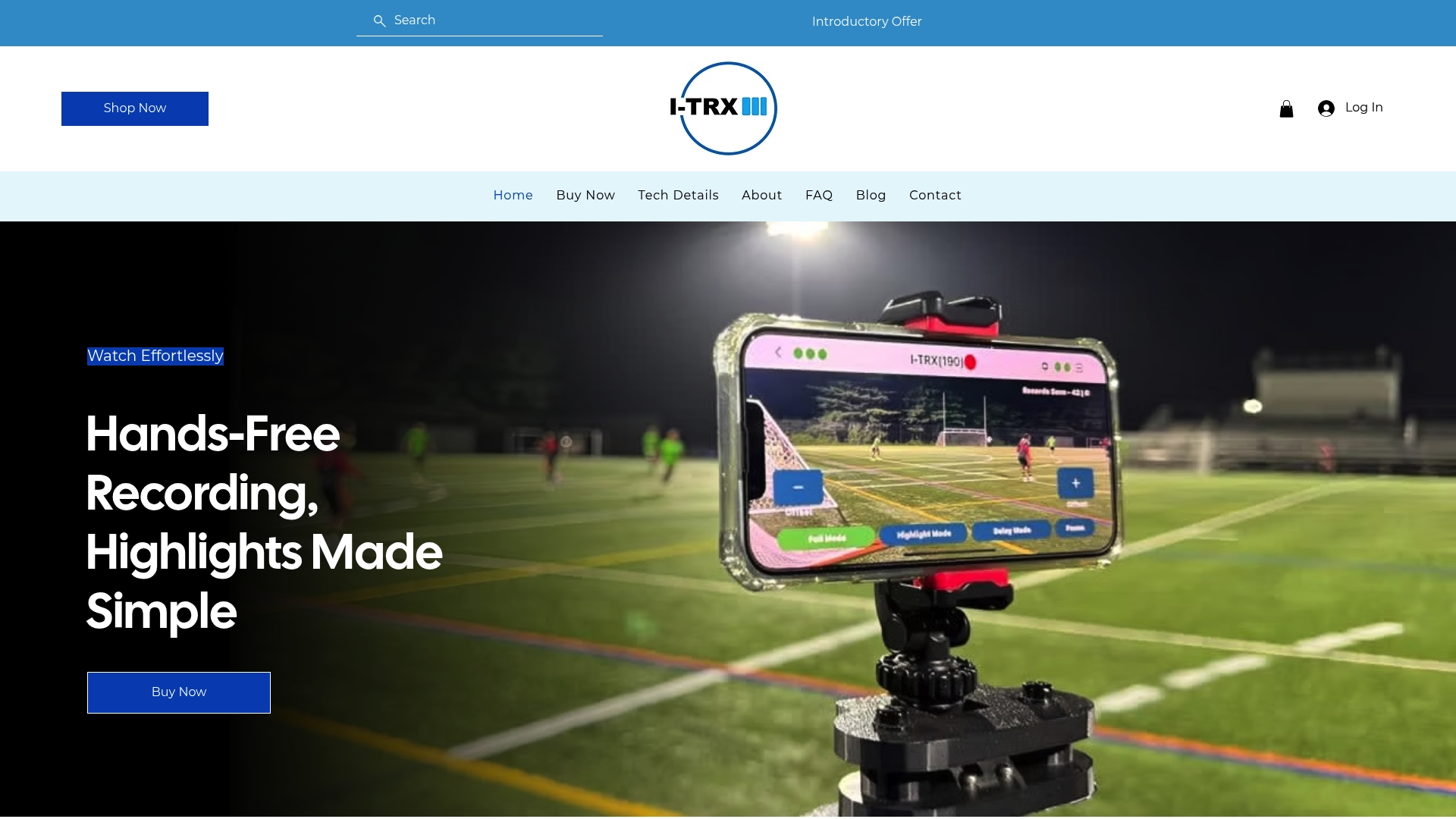
Every workflow covered above, pairing a sensor, verifying tracking, buffering instead of guessing when to hit record, is exactly what the system is built to handle out of the box. If you’re ready to see the technical specifications or want the full breakdown of how automated tracking works for youth athletes, the pricing page is the place to start.
Sources
FAQ
Does I-TRX Require a Monthly Subscription?
No. I-TRX is a one-time purchase at $849 with no recurring subscription fees for the camera and sensor system.
Do I Need Consent to Record My Child’s Teammates?
Yes. MAAPP guidance requires parent or guardian consent for any minor appearing in photos or video, and that consent can be withdrawn at any time.
Can I Set Up a Camera Anywhere Along the Sideline?
Not automatically. Many schools and leagues require administrative approval before you place a camera near the field, so check with your venue or league first.
Why Do My Clips Take Long to Save or Transfer?
Large files from high resolution or heavy codecs like ProRes slow transfers dramatically, since ProRes files can be significantly larger than HEVC. Switching to a lighter codec and checking free storage before the game usually solves it.
Is It Safe to Post Highlight Clips Publicly?
Posting publicly needs its own explicit consent beyond a general season permission form, since other players may appear in the background. Keeping clips inside a private parent group is the safer default under open and transparent communication rules.
Comments