
iPhone USB-C Video: What It Can Do for Sports Footage

The USB-C port on newer iPhones does three video jobs: it sends your screen to a TV or monitor, it lets supported Pro models record straight to an external drive, and it moves finished clips to a USB drive or computer. If you film your child’s games, all three matter, because sports video is large, fast and easy to lose. Below is what each job needs in cables and settings, how 4K at 60 frames per second and slow motion fit in, and how to end up with clips a coach or recruiter can actually use.
Which iPhones can send video out over USB-C
Apple’s support page says iPhone 15 models, iPhone 16 models except iPhone 16e, iPhone 17 models except iPhone 17e, and the iPhone 18 Pro models and iPhone Duo support USB-C display connections. The same page explains that iPhone 15 and later use USB-C for charging and data syncing, and that supported models can connect to external displays.
Two practical points follow from that:
Having a USB-C port is not the same as having video out. The “e” models carry the port but are listed as exceptions for display connections. Check your exact model before you buy cables.
Older iPhones with Lightning work differently. They need Lightning-based adapters, which is a separate topic from the USB-C connection described here.
If you are unsure which iPhone you have, open Settings, tap General, then About, and read the model name. Match it against Apple’s list before spending money on adapters.
Connecting your iPhone to a TV or monitor
Playing back game footage on a big screen is the easiest win. Reviewing a clip on a 6-inch phone at the field is fine for a quick laugh, but a living-room TV shows footwork, spacing and body position far better.
Per Apple, you connect a supported iPhone to an HDMI display with a USB-C-to-HDMI adapter or cable, or to a USB-C display with a USB-C cable. HDMI 2.0 supports 4K at 60Hz, so if your TV advertises that, you can view 4K/60 content at full quality.
Cable choice matters
The cable that comes with your iPhone is built for charging and USB 2 speeds. For a USB-C display connection, Apple says to use a cable supporting USB 3.1 or higher. If you plug the box cable into a monitor and nothing appears, that is the first thing to swap.
Wired or wireless
Wired connections give the least delay when mirroring your screen, while AirPlay is a wireless option that works with any iPhone, according to one mirroring guide. For reviewing a finished clip, a little delay does not matter, so AirPlay is perfectly fine for the family room. For scrubbing frame by frame with a coach beside you, a cable is steadier.
A quick setup for game-night review
Confirm your iPhone model is on Apple’s supported list.
Pick a USB-C-to-HDMI adapter or cable that supports the resolution of your TV, and a USB-C cable rated USB 3.1 or higher for USB-C monitors.
Plug in, switch the TV input, and open Photos.
Play the clip full screen and pause on the moments worth talking about.
Recording 4K at 60 fps straight to an external drive
This is the USB-C feature that excites sports parents most, and it has the most conditions. Apple states that for 4K/60 fps ProRes recording to external storage, you need an iPhone 15 Pro, 16 Pro or 17 Pro. You enable ProRes in Settings, then choose ProRes, the resolution and the frame rate in Camera. Apple also calls for an exFAT drive and a USB 3 cable rated at 10 Gbit/s or higher (Apple’s ProRes guide).
Speed is the other constraint. The same page says recording 4K at 60 fps ProRes to an external drive needs a device with write speeds of at least 220 MB/s, and 4K at 120 fps needs 440 MB/s. A cheap thumb drive will not keep up. A portable SSD is the sensible choice.

Is ProRes right for a youth game?
ProRes files are big. A full game in ProRes can fill a drive quickly, and most families do not need that quality to produce a good highlight. If you want to weigh the tradeoffs, our guide to 4K versus 1080p sports video walks through when the extra resolution is worth it. If storage on the phone itself is your concern, see how to protect iPhone game footage with 1080p/60 and a modest storage plan.
What 60 frames per second does for sports
Sixty frames per second shows motion more smoothly than 30, which helps with a swinging bat, a sprinting winger or a diving goalkeeper. In gyms, though, the frame rate can clash with lighting. We cover that in avoiding 60Hz flicker with the right frame rate settings, which is worth a read before an indoor tournament.
Slow motion for sports on iPhone

Slow motion is where technique gets studied: a pitcher’s release, a golfer’s takeaway, a striker’s plant foot. Apple’s specifications for the iPhone 14 Pro Max list Slo-mo at 1080p at 120 or 240 fps on the rear camera, and 1080p at 120 fps on the front TrueDepth camera. That spec page dates from 2022, so look up the page for your own model to see current limits, since newer iPhones may offer more.
A few habits make slow-motion clips far more useful:
Light the scene. High frame rates shorten the exposure time per frame, so slow motion looks best in bright daylight. Dusk and indoor courts add noise.
Keep the clip short. Start recording just before the action. A 10-second slow-motion clip is enough for one swing or one shot.
Lock your exposure. If the sun moves behind a cloud or the player runs into shade, brightness can shift mid-clip. Our iPhone exposure lock guide for sports video explains how to hold it steady.
Mount the phone. Handheld slow motion exaggerates every wobble. A tripod or fence mount helps.
If your goal is mechanics review, our pitching mechanics video guide shows camera angles and review steps that apply well beyond baseball.
Moving videos to a USB drive or computer
The third USB-C job is the least glamorous and the most valuable: backing up. Apple says you can connect a USB drive to the iPhone (a cable adapter might be needed) and use Files or another supported app to copy files to it. The Files app also lets you copy, organize and transfer items from an external storage device directly.
A simple routine after each game weekend:
Plug in a drive you keep just for sports video.
Open Files and copy the clips you want to keep into a folder named by date and opponent.
Check that the files play back from the drive.
Only then delete clips from the phone to free space.
Naming folders by season and opponent pays off months later, when a coach asks for “the tournament clips from the spring.”
Turning raw footage into clips coaches and recruiters can use
A cable and a fast drive solve storage and playback. They do not solve the harder problem: someone has to point the camera at the right player for the whole game. Most parents who film end up watching their child through a screen, missing the play they came to see, and still getting clips where the athlete is a small figure far down the field.
What tends to make footage useful for assessment or a recruiting clip is simple:
The player is clearly identifiable and large enough in frame to read their movement.
Clips are short and focused on decisions, first touches, swings or finishes rather than long stretches of waiting.
The angle is consistent, so a coach can compare one game to the next.
Files are organized and exportable to the platforms coaches use.
For the last point, our guides on exporting video for Hudl, NCSA and MaxPreps and two iPhone sports video workflows that deliver recruiting clips show how to get from a camera roll to something you can submit. For athletes training alone, filming solo soccer training covers drill cues and setup, and nighttime sports filming helps when the lights are poor.
Our perspective: the cable is not the hard part
We hear the same story from parents again and again. They bought a good iPhone, learned the settings, maybe even picked up a fast drive, and still came home with game video that missed the best plays. The reason is not the port or the frame rate. It is that one person cannot cheer, watch the game and keep a lens on one kid all at once. That is why we built I-TRX around the athlete instead of the phone. The player wears a small sensor, and the camera system uses AI control to lock on to that one athlete and follow them with an auto-zoomed shot, whether the ball is near or the action is on the other side of the field. Highlights save to your iPhone as they happen, so there is nothing to edit before you share with grandparents, a coach or a recruiting profile. Ultra Highlight Pro buffers past play, so the moment you just saw is not lost because you were a second late. USB-C video tricks are useful for review and backup, and we encourage families to use them. But we think the biggest upgrade is getting the right footage in the first place, so you can set it and forget it, then enjoy the game. John
Hands-free single-player filming with I-TRX
I-TRX is an automated tracking camera system for outdoor youth sports. It pairs a wearable player sensor with AI to record high-quality, single-player highlight videos directly to your iPhone, with instant highlight saving, auto-zoom and real-time sharing. It offers full game or session recording and a delayed solo recording mode, and there are no monthly fees. The system is a one-time purchase of $849, with app access included. You can see everything on the I-TRX pricing page or read the tech details first.
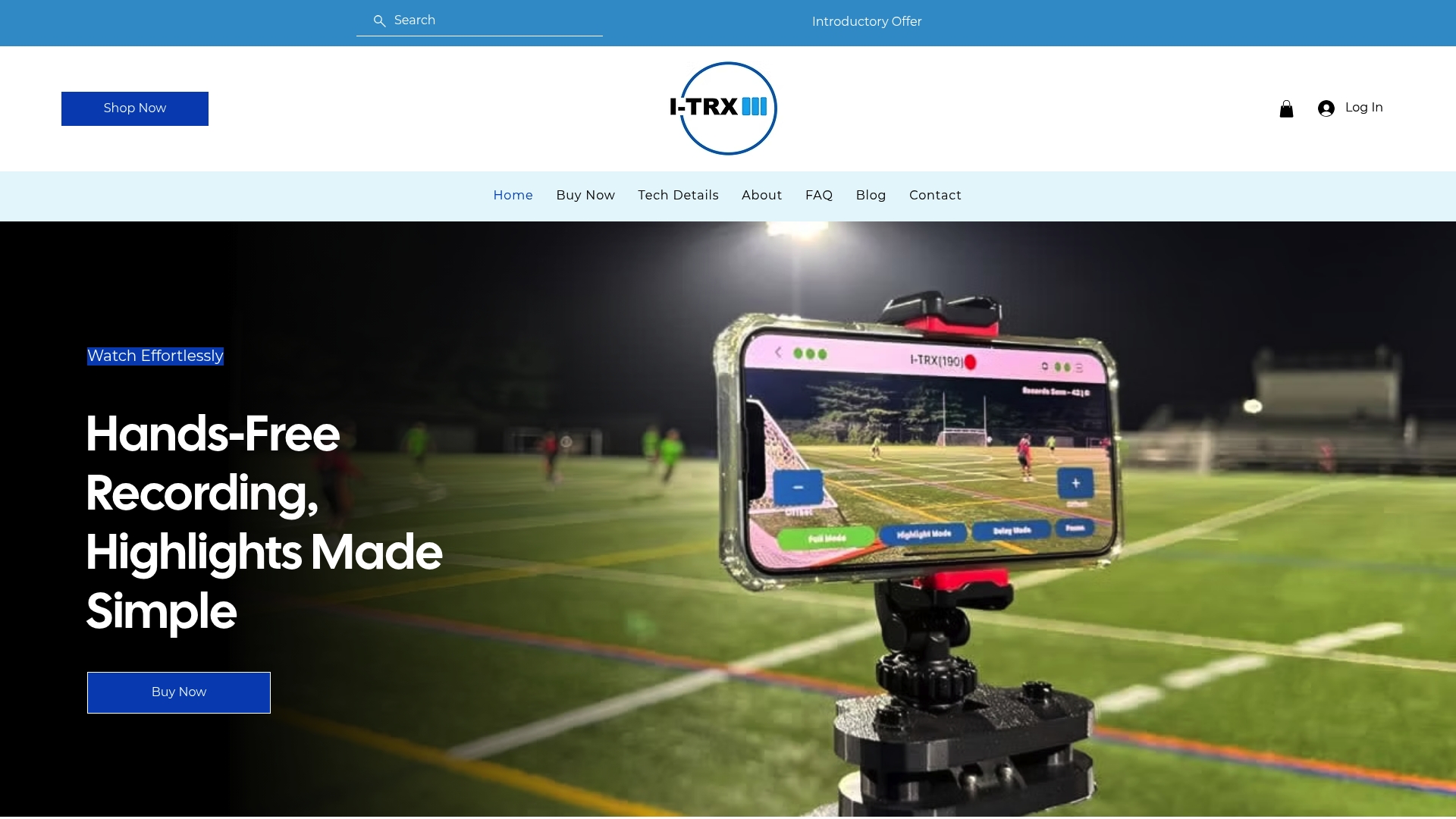
If you are already comfortable with exports and drives, I-TRX simply gives you better clips to put on them. Visit i-trx.com to see how it works for your athlete’s sport.
Frequently asked questions
Does the iPhone USB-C cable support video?
It can, but not every cable does. The cable that ships with the iPhone supports charging and USB 2 speeds, while a USB-C display connection calls for a cable supporting USB 3.1 or higher. Your iPhone must also be a model that supports USB-C display connections.
Can I transfer videos from my iPhone to a USB drive?
Yes. Plug the drive into the iPhone, using an adapter if the drive needs one, and copy files with the Files app or another supported app, as Apple’s iPhone guide describes. Check that the copy plays back before you delete anything from the phone.
Can I record 4K at 60 fps to an external drive?
On an iPhone 15 Pro, 16 Pro or 17 Pro, yes, using ProRes. You need an exFAT drive, a USB 3 cable rated at 10 Gbit/s or higher, and write speeds of at least 220 MB/s, according to Apple’s ProRes support page. Standard recording to the phone does not require any of this.
How do I show a game video on my TV?
Use a USB-C-to-HDMI adapter or cable on a supported iPhone, or use AirPlay if you prefer wireless. HDMI 2.0 handles 4K at 60Hz per Apple’s connection guide. A wired link gives the least delay if you are scrubbing through a clip with a coach.
What is the easiest way to get good sports clips without filming?
An automatic tracking camera takes the filming off your hands. With I-TRX, a sensor worn by your athlete tells the camera whom to follow, and highlights save to your iPhone for sharing. See the I-TRX pricing page for the current system and price.
Sources
Comments