
Never Miss a Game: Parents' Hands Free Live Video Saving, $849 Camera

Yes, you can save live video in real time, and the most reliable move is running a local backup recording alongside whatever else you’re doing. Set OBS to record locally in MKV, use a rolling buffer for instant replay, or lean on browser or mobile screen recording when you need something fast. Cloud archiving helps too, but it should never be your only copy.
What Are the Best Ways to Do Real Time Video Saving?
Every parent who’s ever missed the game-winning goal because the phone was in a bag knows the problem: live moments don’t wait for you to hit record. Real time video saving means capturing footage the instant it happens, not editing it together afterward from memory and regret. Four methods cover almost every situation you’ll run into.
Local recording to disk. Cameras, capture cards, and desktop recorders like OBS Studio write directly to your hard drive as the action unfolds. It’s the most dependable option because nothing depends on your Wi-Fi signal, but it does eat storage fast.
Rolling buffer / instant replay. Instead of recording everything, the system holds the last 30 to 60 seconds in memory or on disk and lets you save that window retroactively the moment something worth keeping happens. It’s built for unpredictable highlights, not full sessions.
Browser or mobile screen recording. The fastest setup of the bunch. Open a browser recorder or hit the phone’s built-in screen record, and you’re capturing in seconds. The tradeoff is battery drain, storage limits, and the occasional notification popping into your frame.
Cloud ingest and platform archiving. Services like YouTube automatically save your stream once you go live, and dedicated stream archivers can pull a copy down for you. Convenient, but you’re trusting someone else’s servers and someone else’s retention rules.
Which one you reach for depends on how much control you want versus how fast you need to move.
How Do You Set Up Each Recording Method?
Picking a method is step one. Configuring it so it doesn’t fail you mid-game is the part people skip, and it’s the part that actually matters.
OBS Studio for local and stream recording. In Settings, go to Output and choose MKV as your recording format. OBS recommends it specifically because an MKV file survives an abrupt shutdown without corrupting the whole recording, unlike MP4. Once you’re done, use OBS’s built in remux tool to convert that MKV into a shareable MP4 with a couple of clicks. If your computer can handle it, set up a separate encoder profile for recording versus streaming so a shaky internet connection doesn’t tank your local file’s quality too. Turn on filename automation (date and timestamp) so you’re not hunting through generic files named “Untitled” at 11 p.m.
Browser-based recorders. Services like Webcamera.io let you record directly in your browser and save to disk or cloud with zero installation. Good for a quick save when you don’t have time to set up dedicated software, but remember you’re often routing footage through a third party’s servers, so skip these for anything sensitive.
Mobile screen recording. On iPhone, turn on Do Not Disturb before you start (a text alert mid recording is its own kind of heartbreak), plug in your charger for anything longer than a few minutes, and check your storage first since a single minute of high quality screen recording can run 30 to 80 megabytes. Android offers similar built-in recorders through Quick Settings, and both platforms let you trim clips right in the native photo app before exporting.
Capture cards and direct camera recording. If you’re pulling footage straight off a camera or console, use a dedicated capture workflow and watch your disk throughput. Long sessions benefit from automatic file splitting so a single corrupted segment doesn’t take down an entire game’s worth of footage.
Stream archiving tools. Command-line tools such as ytarchive and GUI options like Yrewind monitor a channel and start recording automatically, even with a delayed start. They’re built for capturing someone else’s live stream in real time, not for recording your own session, so use them when you need a copy of a broadcast rather than a device you control directly.
Pro Tip: Run a 30 second test recording before anything important. It takes ten seconds and it’s the single easiest way to catch a bad microphone setting or full hard drive before it costs you the whole event.
How Should You Store and Protect Saved Video?
File format decisions sound boring until a recording gets cut off mid game and you’re staring at a file that won’t open. That’s exactly why OBS defaults to MKV: if the software crashes or the power blips, an MKV file stays playable, while an interrupted MP4 recording can become unreadable. Once the session’s over and the file closed cleanly, remux it to MP4 for easy editing and sharing.
Rolling buffers and full disk recording solve different problems. A buffer holds a fixed window of recent footage in memory, so it’s light on storage but limited in scope. Unbounded disk recording captures everything but demands more CPU and steady disk I/O the whole time.
A few habits keep footage from disappearing when you need it most:
Check available storage before you start, not after the memory warning pops up.
Keep your device on stable power. A dead battery mid recording is the most common way people lose a live moment.
Watch CPU load if you’re recording and streaming simultaneously. Dropped frames usually show up first.
Keep a second copy. Platforms like YouTube auto-archive streams under 12 hours, but that’s a convenience layer, not a backup plan. Retention policies vary, and long streams can hit limits you didn’t know existed. Cloud plus local, always.
One more note before you hit record: only capture what you actually have the right to record and share. The U.S. Copyright Office’s fair use guidance is worth a skim if you’re filming anything beyond your own family or team.
How Does I-Trx Handle Real Time Video Saving?
Most of the methods above still require someone to run the camera, hit the right button, and remember to check the buffer. I-TRX skips that step entirely. A small sensor worn by the athlete tells the camera exactly which player to follow, so the system tracks and records that one person automatically, without a parent, coach, or sibling operating anything.
The wearable sensor keeps the camera locked on a single athlete regardless of where the ball or the rest of the team goes.
Highlights save instantly to an iPhone, no manual editing or file wrangling required afterward.
Auto-zoom and highlight generation happen in the background while the game is happening.
There’s no monthly fee involved, and both full-game and delayed solo recording modes are built in for different situations.
This setup fits parents who’d rather watch their kid play than watch a viewfinder, and it fits coaches who want consistent single-player footage without juggling multiple cameras or memory cards. Anyone who’s tried to film one child in a fast moving game full of other children already knows how often the ball, not the kid, ends up in frame.
Which Method Actually Fits Your Situation?
Here’s how I’d sort it. If you want zero setup and consistent, player-focused highlights every single game, an automated hardware system built for that exact job saves you the most stress over a season, not just a single event.

If you’re streaming and editing heavily, OBS with local MKV recording plus a rolling buffer for highlights is still the strongest combination I’ve seen for control freaks who want every frame. If you just need something fast right now, a phone screen recording with Do Not Disturb on, or a quick browser recorder, will get the job done without any learning curve.
Whichever profile fits you, run one test recording first. Check your storage, check your power source, and confirm the file actually opens before the moment you can’t get back happens.
— John
Never Miss Another Highlight on Game Day
I-TRX solves the exact problem this guide just walked through, minus the manual setup. Instead of choosing between OBS profiles, rolling buffers, or a phone propped against a fence, the wearable sensor tracks your athlete automatically and saves highlights straight to your iPhone as the game happens.
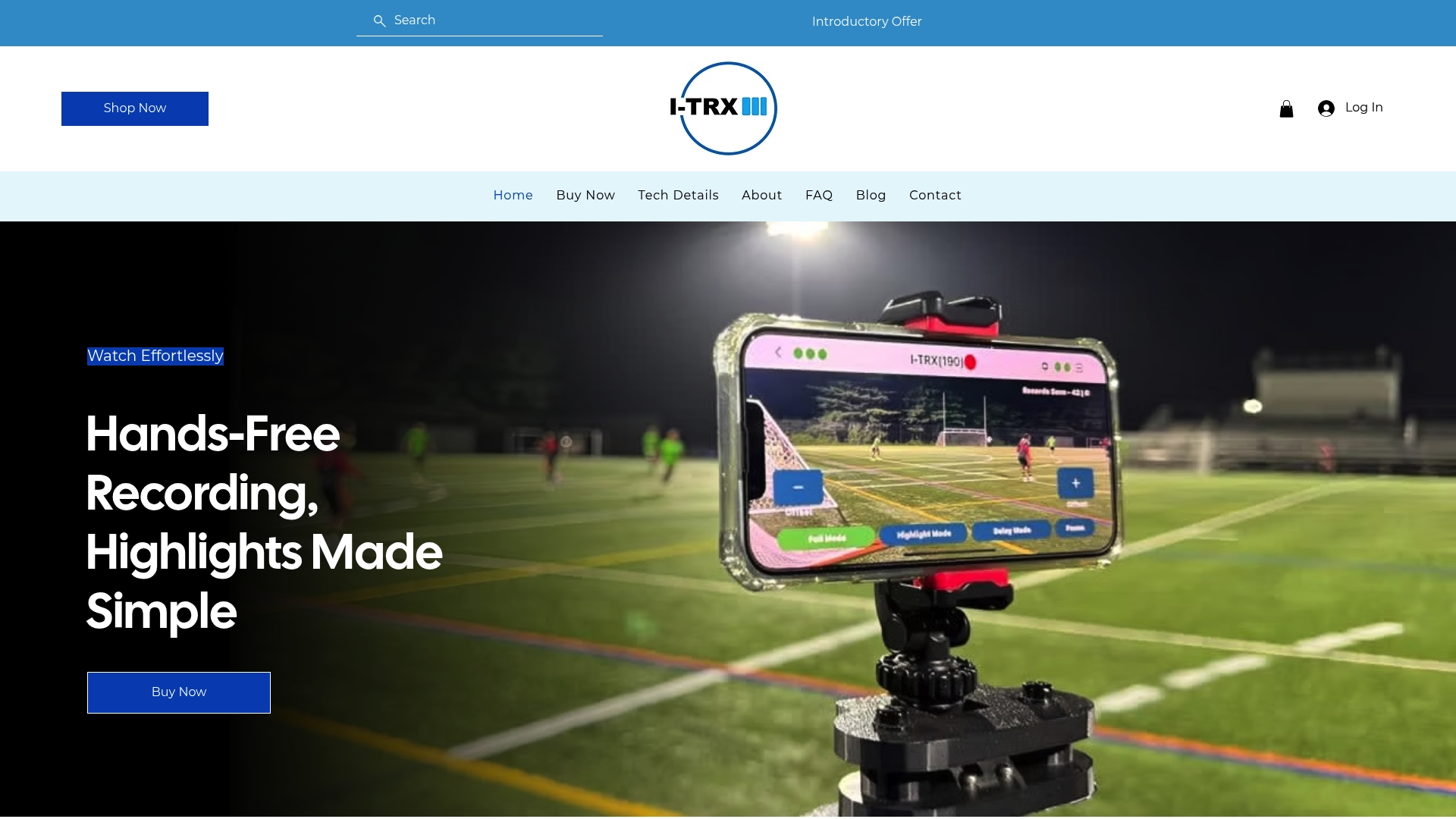
There’s no monthly subscription, and the camera handles the parts that usually go wrong: forgetting to hit record, losing the ball in a wide shot, or missing the one play that mattered because your phone buzzed at the wrong second. The Automated Player Tracking Camera is priced at $849 as a one time purchase. Check the full specs and pricing details before your next game, and see whether a season of hands-free highlight capture is worth handing the camera job to the sensor instead of yourself.
Where to Learn More About Reliable Recording
YouTube’s archive help page explains auto-archive behavior and stream length limits.
OBS’s recording output guide covers format choice and the MKV to MP4 remux process.
Pion’s WebRTC save-to-disk example shows developers how real-time streams get written to disk.
Copyright covers the basics of recording rights.
Sources
FAQ
Can You Save a Live Stream Video?
Yes. Local recording software, rolling buffers, and platform auto-archiving all let you save a live stream as it happens or immediately after. The most dependable approach combines a local backup with whichever cloud archive your platform offers.
Is There a Way to Save a Live Video for Later?
Yes, several. Set your streaming software to record locally in MKV, use a stream archiver to capture someone else’s broadcast, or rely on platform archiving where available. Keeping at least one local copy protects you if the platform’s retention window doesn’t cover your needs.
What Counts as Real-Time Video?
Real time video is footage captured and saved the moment it happens, not reconstructed afterward from separate clips or memory. That includes live local recording, rolling buffer instant replay, and direct capture from a camera or sensor system as the action occurs.
Can You Record a Live Stream to Watch Later?
Yes. YouTube automatically archives streams under 12 hours long, and most streaming software records a local copy simultaneously. For sports specifically, a system like I-TRX saves highlights directly to your iPhone as the game unfolds, so there’s no separate download or archiving step needed afterward.
Comments