
Offline Sports Recording: Capture Games Without Wi-Fi

Offline sports recording means the video is saved on the device that films it, not streamed or uploaded while the game is going on. A dead zone at the field, a packed gym network or a dropped signal can’t cost you the play you came to see. For a parent who wants highlights of one player, the simplest version is a camera that follows your child on its own and writes the footage straight to your iPhone. That is how I-TRX works: a small sensor on the player, an AI-controlled camera and a video file waiting on your phone when the whistle blows.
This guide explains what local storage does, what to set up before you leave the house, how much space and battery a game takes, and how to turn the file into something a coach or recruiter will watch.
What offline recording and local storage mean
There are two ways a game ends up as a video. In the first, the camera sends the picture over the internet as it happens, and a server or app keeps the copy. In the second, the camera saves the video to its own storage, and you move or share it later. The second is local storage, and it is what people mean by recording offline.
The difference shows up when the network gets weak. One professional video platform describes its local recording as saving the feed automatically to the disk of the device during a live session, and contrasts it with modes that pull a live stream, which can stutter when the network fluctuates. The idea carries over to a family on a sideline: a file on your phone doesn’t depend on anyone’s bars of signal.
Three things make local storage a good fit for youth sports:
Fields and gyms are unpredictable. Rural complexes, tournament parks and school gyms often have poor reception, and thousands of people share the same towers on a big weekend.
You own the file. It sits in your Photos library the moment it is saved. No account lookup, no waiting for processing, no download limits.
No ongoing fee for storage. You decide what to keep, what to trim and what to delete.
Which setups can record offline
Almost any camera can record without internet, because recording itself never needs a connection. What differs is how much work it asks of you and how good the footage is. These are the main types.
A phone on a tripod or clamp
The most common setup. It costs nothing extra if you already own a phone and a tripod. The weakness is the wide shot: to keep the whole field in frame, your child shrinks to a dot, and if you zoom in by hand you are filming the game instead of watching it.
An action camera or camcorder
These give you a dedicated device with its own battery and memory card. Action cameras use wide lenses that make the field look far away, and a camcorder needs someone to pan and zoom the entire game. Our guide to choosing between a camcorder and a sports camera goes through the trade-offs.
A fixed wide-angle field camera
A camera on a tall mount that records the entire field. You capture everything, which is useful for a coach breaking down team shape. For a parent wanting one player, you are left to scrub through the whole game to find your child’s touches.
An automatic single-player tracking camera
This is the setup built for the reader of this article. The player wears a small sensor, and the camera locks on to that sensor and follows it, zooming in on the athlete whether the ball is nearby or not. Nobody has to hold or aim anything. If you want to compare the types in more depth, we cover them in our roundup of automatic tracking cameras for youth sports.
Why single-player tracking beats a wide shot for highlights
A wide shot answers the question “what did the team do?” A tracked shot answers “what did my player do?” Those are different videos, and the second one is what a recruiter, a position coach or a grandparent wants to watch.
With I-TRX, the sensor tells the camera where your athlete is, so the framing follows that one person regardless of where the ball goes or how the team moves. The camera zooms automatically, which means the footage is already a close shot of your player instead of a distant crowd scene. Because the video is saved directly to your iPhone, the file is ready to trim and send without a trip to a computer.
The Ultra Highlight Pro mode adds a buffer of past play. If something great happens, you tap to save it and the moment before the tap is included, so a late reaction doesn’t mean a missed highlight.

How to set up an offline recording, step by step
Whatever you film with, the steps below prevent most of the disappointments: footage too far away, a full phone, a dead battery. Where I-TRX changes a step, we say so.
1. Charge everything the night before
Start with a full phone battery. Filming drains it faster than almost any other task, especially in the sun or the cold. For games over an hour, bring a power bank. Keep the phone out of direct sunlight between plays, because heat shortens battery life and can interrupt recording.
2. Free up space before you arrive
Only decide on storage when you are already at the field and it is too late. Check how much room you have the night before and clear out old videos you have already backed up. The next section shows how to estimate what a game needs.
3. Choose the video quality on purpose
Higher quality is not always better for a sideline recording. A smaller file saves space, trims faster and uploads sooner. If you want to understand the choice between resolutions, our article on 4K vs 1080p sports video walks through when each makes sense. For most families filming a season of games, 1080p is the practical choice for sharing and for recruiting platforms.
4. Place the camera where it can see the action
With a regular phone, pick a spot near midfield, a little above the field, on a stable tripod or clamp. Shooting from a low bleacher row blocks the view with every person who stands up. With a tracking camera, the placement matters less, since the camera follows the sensor, but a steady mount with a clear line of sight to the field is still the foundation. Our soccer camera setup guide covers the placement for tracking.
5. Pair the sensor and start recording
With I-TRX, the player wears the sensor pack, the camera locks on, and you choose a mode: full game or session recording, or delayed solo recording. After that you can put the phone down and watch. This is the step that removes the “filming parent” job: you aren’t aiming, zooming or following anyone.
6. Turn off interruptions
Switch on Do Not Disturb so a call or a text banner doesn’t land mid-play. Some parents also use airplane mode on the filming phone, since it removes interruptions from calls and notifications. Check your own setup before the first game to see how it affects the connection between phone and camera.
7. Check the first minute
After the opening minute, glance at the screen to confirm the video is recording and the framing is right. Then leave it alone.
How much storage and battery a game really needs
Storage is the question that catches parents out. A full game at a high resolution can fill a phone faster than you expect.

Apple’s own estimates, which iPhone shows under Settings, Camera, Record Video, put 1080p at 30 frames per second at about 65 MB per minute, and 4K at 60 frames per second at about 440 MB per minute. The 4K figure is on the default efficient format; the more compatible format makes files roughly twice as large.
Here is what that means for a game, using those estimates:
Quality | Per minute | 60 minutes | 90 minutes |
1080p at 30 fps | about 65 MB | about 3.9 GB | about 5.9 GB |
4K at 60 fps | about 440 MB | about 26.4 GB | about 39.6 GB |
The numbers add up quickly on a tournament weekend with three or four games. That is why our own iPhone storage plan for game footage recommends planning free space in advance instead of guessing. A simple rule: multiply the minutes you expect to record by the per-minute figure for your setting, then add a cushion for the next game.
Three things change how long you can record:
Resolution and frame rate. Higher settings use far more space per minute.
Free space on the device. Photos, apps and old videos all compete with the game.
Battery and temperature. A hot or cold phone drains faster. Keep it shaded in summer and warm in your pocket before setup in winter.
A tracking setup that records only what matters also helps. Highlight clips are short, so they take a small share of the space that a full-game file would.
After the game: review, trim and share
A recording is only useful if people see it. Plan ten minutes after the game, while memories are fresh.
Trim to the best moments. Open the video in Photos and cut it down. For a team chat or text message, a short clip of roughly 8 to 20 seconds works well, with a second of lead-in before the play and a second after it.
Name the file. Something like “Eagles vs. Tigers, Oct 12” saves you from scrolling through a library of clips that all look alike.
Send one link, not ten clips. A shared album or cloud folder is easier for grandparents and relatives than a pile of separate videos.
Build the reel over time. Save your best clips each week into one album. By the end of the season you have material for a recruiting reel without a late-night editing scramble. We lay out two iPhone workflows for recruiting clips and how to assemble 3 to 5 minute reels from game video.
Export for the platform. Recruiting sites and film platforms have their own preferences for file type and length. See how to export video for Hudl, NCSA and MaxPreps.
Posting a minor’s video
You are filming children, and not every family wants their child’s face online. Before you post publicly, ask the coach whether the team has rules about sharing, and whether any players have opted out. Sending footage privately to family and to coaches is the safer default, and you can publish a recruiting reel of your own athlete when you are ready.
What this means for coaches and organizations
Coaches use player-specific footage to assess movement, positioning and decision-making for one athlete at a time. A tracked video of a single player means less scrubbing through a wide shot and a clearer view of what that athlete did when the ball was elsewhere. Organizations that collect footage across a season benefit from a file-on-the-device approach, because no one depends on a network or on a subscription that has to be renewed.
Our perspective
Parents tell us the same thing again and again: they came to watch, and they spent the game behind a phone. Offline recording solves half of that, since nothing depends on a signal. The other half is who is doing the filming. That is why we built I-TRX around a sensor on the player. The camera locks on to one athlete, zooms in on its own and saves the video to your iPhone, so you can cheer, talk to the other parents and watch the play happen. We think of it as a personal videographer that you set up and forget. The footage also matters later. Highlights of your own player, not a wide shot of twenty-two, are what a recruiter or a coach can use. And because there are no monthly fees, the video you save this season stays yours without a bill attached. John
Get the highlights without running the camera
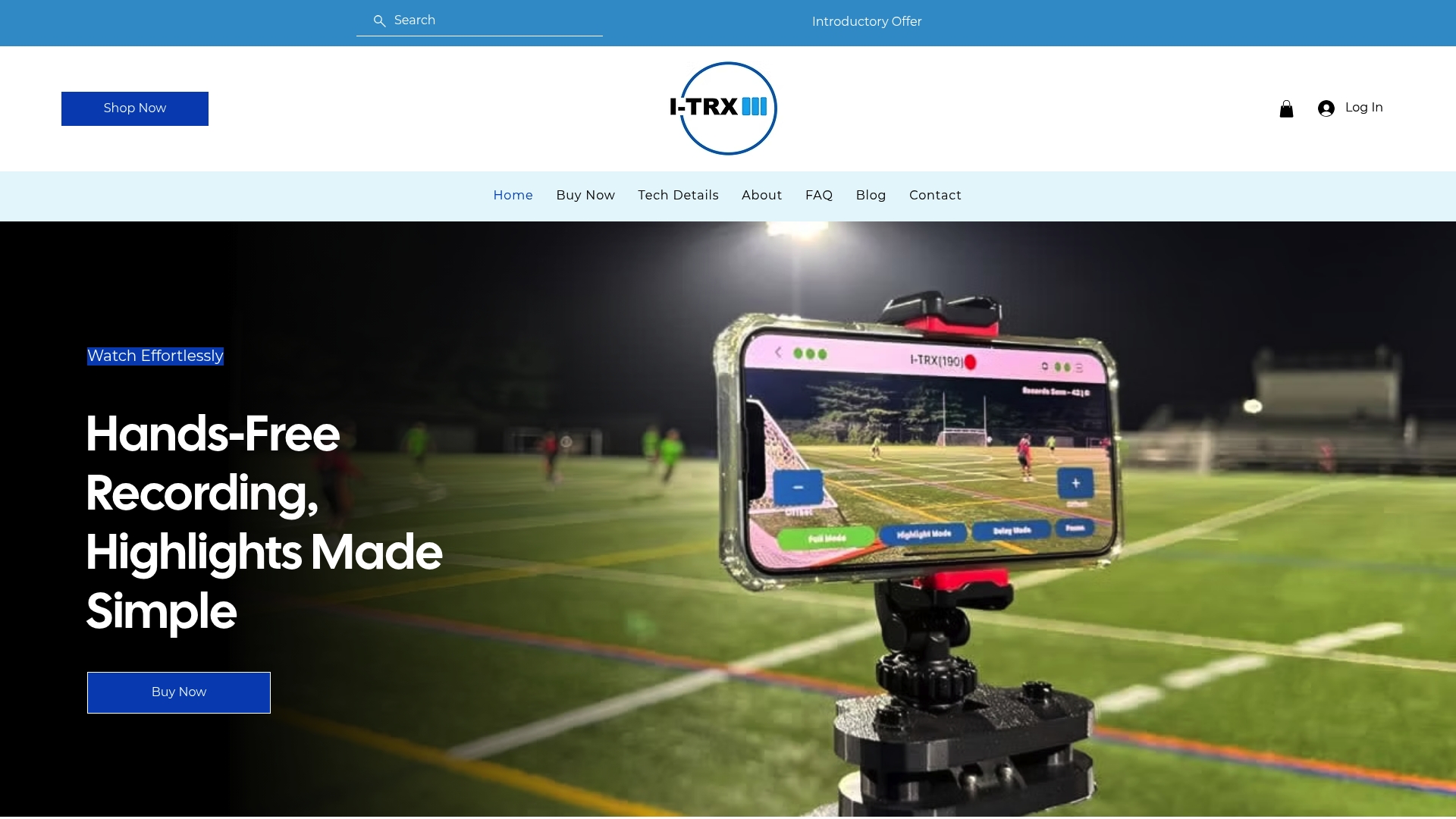
I-TRX is an automated tracking camera system for outdoor youth sports. A wearable sensor pack tells the camera which athlete to follow, AI controls the zoom, and the video goes directly to your iPhone, with instant highlight saving and easy sharing. You can record a full game or session, or use delayed solo recording. The system is $849 one time, with no monthly fees.
See how it works on the I-TRX pricing page, or read the technical details first. If you play soccer, the soccer recording camera page shows the setup for that sport.
FAQ
Can I record a youth game without internet or cell service?
Yes. Recording saves video on the device, so it doesn’t need a connection. Streaming and live uploads are what need a signal. With I-TRX, the footage is recorded directly to your iPhone, ready to trim and share when you are back in range.
How much storage do I need for one game?
It depends on quality and length. Using Apple’s estimates, a 60-minute game at 1080p and 30 fps takes about 3.9 GB, while the same game at 4K and 60 fps takes about 26 GB. Check your free space the night before and leave room for a second game.
Is 1080p good enough for recruiting video?
For most families, yes. 1080p keeps files small, so trimming and sending is faster, and it is a practical standard for highlight reels. Our 4K vs 1080p guide explains when higher resolution is worth the extra space.
Can I post my child’s game video online?
Send it privately to family and coaches first. Before posting on public channels, ask the coach whether the team has sharing rules or players who opted out.
Do I need a subscription to keep my footage?
Not with I-TRX. The system is a one-time purchase of $849 with bundled app access, and there are no monthly fees. The videos are saved on your iPhone.
Sources
Comments